A colleague emails you a report, you open it in Word to add a few paragraphs by voice, and the Dictate button stays gray. Word opened the attachment read-only, and voice dictation will not write into a document you cannot edit. Click Enable Editing in the yellow bar and the microphone comes back.
You already have dictation without installing anything: Windows + H on a PC, the Microphone key (or Edit, Start Dictation) on a Mac, the mic key on your phone's keyboard. This guide starts with Word and the ways it blocks you (subscription, account, version, read-only files), then covers Windows, Google Docs, the Mac, iPhone and Android. Every command quoted here comes from the vendor's help pages, linked in the text and checked on 26 October 2026.
Voice dictation in Word: the Dictate button
Word has its own dictation, separate from Windows'. Microsoft says it is only available to Microsoft 365 subscribers, on Windows, on a Mac and in Word for the web. You need a microphone and a reliable internet connection.
- Open the document and put the cursor where the text should start.
- On the Home tab, click Dictate (the microphone icon).
- Wait for the button to switch on, then speak. Text appears at the cursor.
- Click the microphone again to stop.
On a Mac, Microsoft lists Option + F1 to start dictating. On Windows it only documents Alt + ` (the backtick key) to resume after a pause. The gear icon on the floating toolbar sets the language and turns auto-punctuation on or off.
On privacy, Microsoft's dictation help page says your speech is sent to Microsoft and used only to return the text, and that the service does not store your audio or the transcribed text.
The Dictate button is grayed out or missing
Microsoft treats these as two separate problems with different causes.
A grayed-out button means the document is read-only. That covers an attachment opened in Protected View (the yellow bar with Enable Editing), a file a colleague has open on a shared drive, and a document marked as final. Make it editable and Dictate comes back.
A missing button has three causes. Check them in this order:
- You are not signed in. Go to File, then Account: the name shown must be the account that holds the subscription, not a personal account with no license.
- Your Word is not a Microsoft 365 Word. According to Microsoft, "Dictate is not available in Office 2016 or 2019 for Windows without Microsoft 365." A one-off Office license that came with the PC will never show the button.
- You are running a version of Windows older than Windows 10.
In cases 2 and 3, stop looking: Windows voice typing writes into Word like any other app (see below). If the button is there but Word says dictation cannot hear you, Microsoft's advice points at the microphone: muted, input level too low, or blocked by the browser in Word for the web.
New lines and punctuation in Word
In English, say "new line" to start a new line. Microsoft's English command list has no "new paragraph", so say "new line" twice to leave a blank line. The list does include "period" or "full stop", "comma", "question mark", "exclamation mark", "colon" and "semicolon".
To fix mistakes without the keyboard, say "delete" to remove the last word or punctuation mark, "delete that", "delete last three words", "undo", or "backspace". Microsoft also lists "bold that" and "start list". With auto-punctuation on, Word adds commas and periods itself, and you only dictate the marks it misses.
If you dictate in another language, the words change. In French, for instance, Word expects "saut de ligne" where the Mac and Google Docs expect "nouvelle ligne". The same help page carries the list for each supported language.
Windows voice typing: dictate in Word without Microsoft 365
You can dictate in Word for free, whatever the version, by going through Windows instead of Word. Put the cursor in the document and press Windows + H. A small bar with a microphone appears and what you say is typed at the cursor. The shortcut works in every app, from your email client to line-of-business software.
On Windows 11, voice typing understands "new line", "next line" and "new paragraph" for layout, "scratch that" or "delete that" to remove what you just said, "press Enter" to submit, and "stop listening" to finish. The gear icon on the bar turns on automatic punctuation. On Copilot+ PCs, Microsoft adds fluid dictation in English, which runs on small language models on the device.
On Windows 10, the same shortcut opens the Windows 10 dictation toolbar, with a "stop dictation" command; its voice commands work in US English only. On both versions, Microsoft says you need an internet connection, because recognition runs on its online Azure Speech services.
Voice typing in Google Docs
Google Docs has free voice typing in the latest versions of Chrome, Edge and Safari. Open the document, then Tools, Voice typing: a microphone appears to the left of the page. Check the language shown above it, click the microphone, speak, and click again to stop. In Chrome, Ctrl + Shift + S (Cmd + Shift + S on a Mac) starts it directly, according to the Docs keyboard shortcuts list.
For punctuation, Google lists "period", "comma", "exclamation point", "question mark", "new line" and "new paragraph". Docs goes further than most tools in English: "select paragraph", "italics", "go to the end of the line", "copy", "paste". Those editing commands work in English only, with both the document and the account set to English. In any other language you get text and punctuation, and you edit with the keyboard.
On a company Google Workspace account, an administrator can switch the feature off. If Voice typing is missing from the Tools menu, that is the first thing to check.
Turning on dictation on a Mac
Open the Apple menu, then System Settings and Keyboard. Under Dictation, turn it on and pick a shortcut. The Microphone key in the function row starts dictation if your keyboard has one; otherwise use your shortcut or Edit, Start Dictation. Apple's guide says you can dictate text of any length without a timeout, and that dictation stops by itself after 30 seconds with no speech. When it is unsure of a word, it underlines it in blue: click it to pick the alternative.
Auto-punctuation adds commas, periods and question marks, and you can turn it off in the same settings. For layout, say "new line" or "new paragraph" (full list of dictation commands). Mac Dictation also types into Word, which solves the case of Word for Mac without a subscription.
Dictation on iPhone and Android (Gboard)
On iPhone, the switch is in Settings, General, Keyboard, Enable Dictation. Then tap the mic key on the keyboard in any app and speak. The keyboard stays open while you dictate, so you can fix a word with your finger without stopping. Apple says dictation is processed on the iPhone in many languages, with no internet connection required. Say "new line" or "new paragraph" for a line break, and "delete" followed by the phrase you want gone. Auto-Punctuation is under Settings, General, Keyboard.
On Android, the most common keyboard is Gboard. Gboard's help gives the steps: tap the microphone at the top of the keyboard, wait for "Speak now", and dictate. The punctuation phrases are "period", "comma", "exclamation point", "question mark", "new line" and "new paragraph". Samsung phones ship their own keyboard with its own mic key; you can still install Gboard if you prefer its commands.
To record an appointment on your phone rather than dictate, see Voice recorder on iPhone and Android.
The basic commands, tool by tool
The same phrase does not work everywhere. This table draws on the help pages linked above, for English.
| Tool | Start | New line | Free | Offline |
|---|---|---|---|---|
| Word (Dictate) | Home › Dictate | "new line" | No, Microsoft 365 | No |
| Windows 11 | Windows + H | "new line" or "next line" | Yes | No |
| Google Docs | Tools › Voice typing | "new line" | Yes | Not documented |
| Mac | Microphone key or shortcut | "new line" | Yes | Depends on the Mac: Keyboard settings tell you |
| iPhone | Keyboard mic key | "new line" | Yes | Yes, in many languages |
| Android (Gboard) | Keyboard mic key | "new line" | Yes | Not documented: test in airplane mode |
Which free speech recognition tool to use
In our view, the best free dictation software is the one built into your system, because it types everywhere and needs nothing installed. On a Mac or an iPhone, Apple Dictation has a clear edge: it can process your voice on the device, and the settings tell you when it does. On a PC, Windows + H does the job, with a full set of English commands on Windows 11 but an internet connection required.
Google Docs earns its place for a long piece written in one sitting in the browser, and in English its editing commands are the most complete of the free tools. Word's Dictate, if you already pay for Microsoft 365, is the most convenient for working inside a document: it punctuates on its own and accepts "delete" and "undo". Subscribing for it alone makes little sense, since Windows + H types into Word too.
Dragon in 2026: is it still worth the price?
Dragon NaturallySpeaking was for years the software of lawyers and doctors who dictate all day. Its maker, Nuance, now belongs to Microsoft. Dragon's site presents Dragon Professional v16, installed on a Windows 11 PC (Windows 10 compatible), Dragon Professional Anywhere, hosted in the cloud, and Dragon Anywhere Mobile. It shows no public price and no Mac version, and sends you to its sales team.
What Dragon adds that the free tools lack: a vocabulary you can train (client names, legal or medical terms), text templates inserted by voice, commands to drive Windows, and on-PC recognition for the installed version. Nuance claims accuracy of up to 99%, a vendor figure we have not measured.
For an occasional email, Dragon is not worth the money: Windows + H is enough. It earns its price if you dictate for hours a day, with jargon the free tools mangle, and an obligation to keep your voice on your own machine. In that case, get quotes from several resellers: prices depend on the license type and the number of seats.
Offline dictation, and where your voice goes
Most dictation does not work offline, because recognition happens on a server. Word and Windows send your voice to Microsoft's services. Google Docs hands recognition to the browser without saying where it runs. The iPhone processes dictation on the device in many languages. On a Mac, the text under Dictation in System Settings, Keyboard tells you whether general dictation stays on the computer or goes to Siri servers. Apple flags one exception on both devices: what you dictate into a search field may be sent to the search engine.
For Gboard, Google's help says neither where your voice is processed nor whether dictation works without a network. Put the phone in airplane mode and dictate a sentence before you rely on it on a train or in a basement.
Dictating a letter to a client means saying their name, their case, sometimes their health. If you are a lawyer, a notary or a clinician, check where the voice goes before you dictate a file, and ask your IT team what is allowed. A server located in Europe does not settle everything, as The CLOUD Act: why a server in France is not enough explains.
When several people are talking
Dictation assumes one voice in front of a screen. In a meeting, people talk over each other and you need to follow the conversation rather than watch the text, so you record and then transcribe. With Microsoft 365, the Dictate button's menu holds Transcribe, which turns a .wav, .mp4, .m4a or .mp3 file into text and separates the speakers, up to 300 minutes of uploaded audio a month. Other methods are in How to transcribe audio to text, and the structure of the final document in Meeting minutes: what to include. For a meeting on Teams, Meet or Zoom, see AI meeting notes.
This is the case we make Notus for, and it also works for ideas you dictate away from your desk, between two appointments. Notus has a single button. About thirty seconds after you stop recording, the transcript, with the voices separated, and the summary reach your phone, in French or English. The free plan covers 50 hours of recording a month.
It also answers the question raised above about where your voice goes. The audio is processed in Europe by open-source and European models, then deleted as soon as the note is ready (within 48 hours at most at our processors). Notes are hosted in France and never used to train an AI. If you mostly dictate at your computer, free dictation is enough.
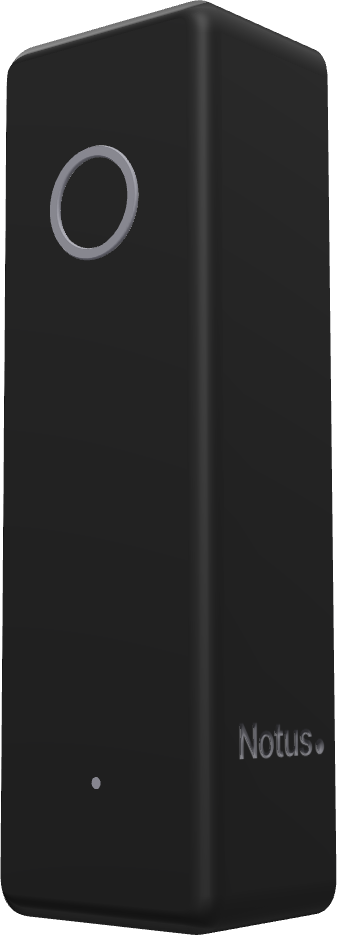
Notus is available for pre-order, shipping in the first half of 2027. See how it works
Frequently asked questions
What is the difference between dictation, transcription and speech recognition?
Dictation types what you say live, at the cursor. Transcription turns an audio file you already recorded into text afterwards. Speech recognition is the technology behind both.
What is the shortcut for voice typing on Windows?
Press Windows + H with the cursor in a text field, on Windows 10 and Windows 11. You need an internet connection.
Why does dictation keep stopping?
On a Mac, Apple stops it after 30 seconds with no speech. In Word, click the microphone on the floating toolbar or press Alt + ` to resume. If words go missing or it cuts out mid-sentence, Microsoft suggests a faster, steadier connection, less background noise and speaking more deliberately.
How do I dictate a line break?
Say "new line" in Word, Google Docs, Windows 11, Mac, iPhone and Gboard. "New paragraph" works everywhere except Word, where it is not in Microsoft's English list.