AI meeting notes are written from a transcript, and Teams, Google Meet and Zoom only produce one if someone started it during the meeting. Most help-forum threads on the subject begin there: the meeting is over, someone goes looking for the transcript, and it does not exist.
If it does exist, you have two routes. Your license includes an automatic summary (Copilot or Teams Premium, Gemini in Google Workspace, a paid Zoom plan), or you paste the transcript into an assistant such as ChatGPT with strict instructions. Either way you get a draft to check, and its mistakes land on the parts everyone reads first.
Where AI meeting notes go wrong
The work happens in two steps. A speech recognition engine transcribes the audio, speaker by speaker: an hour of meeting comes to something like 9,000 words. A language model then reads that text and pulls out topics, decisions and tasks. It never listens to the audio. If the transcript heard "fifteen thousand" for "fifty thousand", the notes will say 15,000 without blinking.
The errors cluster in three places. A suggestion floated in passing ("what if we pushed it to the 15th?") becomes an agreed decision, sometimes credited to whoever spoke last. A lost "not" flips a sentence without making it read oddly. Two figures mentioned five minutes apart get merged. Suppose someone says "the 40,000 euro budget, we're not signing it off today, we're waiting for Sami's estimate". A faulty summary reads "€40,000 budget approved, estimate to be done by Sami", with the right words and the opposite decision.
France Num, the French government's digital program for small businesses, adds a flaw in its guide to AI meeting minutes (in French): AI tends to put everything on the same level, so a corridor remark weighs as much as a firm commitment. Its fix costs nothing. Spend the last minute of the meeting restating the decisions and actions out loud, and the transcript then holds one clear sentence per decision instead of a discussion the AI has to reconstruct.
Getting the transcript of a Teams meeting
If the meeting was transcribed, the transcript is available as soon as it ends, in two places. In Teams, go to Chat, open the past meeting's chat, then Recap and Transcript. The arrow next to Download offers a .docx (to read or paste into an assistant) or a .vtt (subtitle format, with timestamps). The same recap opens from the event in your Teams calendar. Microsoft's steps are in View live transcription in Microsoft Teams meetings.
The file itself lives in the organizer's OneDrive, or in the team's SharePoint for a channel meeting. By default only the organizer and co-organizers can download it. If you are neither and the button is grayed out, ask the organizer for the file: your admin can widen that permission, you cannot.
If nobody started a transcript, there is nothing to recover, unless the meeting was recorded on video without a transcript. In that case the video's owner can open the recording in the OneDrive or SharePoint player, go to Video settings, and generate the transcript there. Microsoft supports this for files under 4 GB and under 4 hours (Microsoft help on video transcripts).
Teams: transcribe without recording, or by default
You can transcribe a Teams meeting without recording it. During the meeting, open More actions in the meeting controls, select Transcribe, confirm the spoken language, then Confirm. No video is kept, only the text. Everyone sees a notice that the meeting is being transcribed. Starting a recording, on the other hand, starts the transcript automatically.
A wrong language setting ruins the result: a meeting held in French and transcribed as English gives unusable text. Teams often spots the mismatch and offers to fix it, but check the language settings in the transcript pane anyway.
Transcribing by default is more limited than people hope. There is no user setting that transcribes all your meetings. It is set meeting by meeting: in the calendar event, open Meeting options, then Recording & transcription, and turn on "Record and transcribe automatically" (Microsoft help). Since May 2026 Microsoft has been rolling out a "Transcribe only" choice in the same place, which transcribes without recording. If these options are missing, or the Transcribe button shows a lock, the decision is your admin's: transcription is a meeting policy setting in the Teams admin center (Microsoft Learn), and it has to be allowed for both the organizer and whoever starts it. A guest, or someone from another organization, cannot start it at all.
Teams intelligent recap
With no extra license, the Recap tab holds the recording, the transcript, shared files and any notes typed by hand. The AI-written notes and tasks, which Microsoft calls intelligent recap, need a Teams Premium or Microsoft 365 Copilot license. Microsoft's recap page adds three conditions: the meeting must have been transcribed in a supported language, last at least five minutes, and not be an ad hoc meeting. A meeting started with Meet now gets no AI summary, license or not.
Only people in your organization who were invited can see the recap. A client will not get it that way, which is for the best: send them notes you have checked.
Google Meet: transcripts and "Take notes for me"
Meet transcripts are limited to certain plans: Workspace Business Standard, Business Plus, Enterprise, Education Plus and Workspace Individual, among others (full list on Google's help page). Free Gmail accounts and Business Starter are left out. During the meeting: Meeting tools, Transcribe, Start transcription, then Start in the pop-up. The document lands in the organizer's Drive, in the Google Meet folder with a subfolder per meeting, and the link is added to the calendar event. Video recording follows the same path with Recording (Google help on recording).
The automatic notes feature is called "Take notes for me" and runs on Gemini. In the meeting, the icon is at the top right; its settings let you pick the meeting language, notes length and who the notes go to, then Start taking notes. You can also switch it on ahead of time from the Google Calendar event, under Video call options, Meeting records, with the "Take notes with Gemini" box. The resulting Google Doc goes to the organizer's Drive (Google help).
Google recommends it for meetings of 15 minutes to 8 hours, in a single language. Watch the "Send notes to" setting: "all invitees" includes people outside your organization, and the notes go to the people on the calendar invite whether or not they attended. If a client is on the invite, they will read Gemini's draft before you do.
Zoom: meeting summary
Zoom includes meeting summary in its paid plans (Pro and up). The free plan gets it for 3 hosted meetings a month, according to Zoom's pricing page, but free meetings are cut off at 40 minutes and can only be recorded to your computer, not to the cloud.
To start it, the host hovers over the Zoom AI icon at the top right, ticks Meeting summary (and Generate transcript if they want one), then clicks Start Zoom AI. Participants are notified. When the meeting ends the summary goes out by email, and to the meeting's group chat if that is enabled; only the host can edit or delete it. Someone who joined through a link shared during the meeting does not receive it (Zoom support). When several languages are spoken, Zoom summarizes in the majority one.
Free AI for meeting notes
Before hunting for a free tool, check what you already pay for. France Num puts it bluntly: many companies pay for an extra tool to get a feature they already own. A business Microsoft 365 plan gives you Teams transcripts; Workspace Business Standard gives you Meet's. All that is left is writing the notes, which any general-purpose assistant can do.
In our view, the safest no-budget setup is the transcript from your video tool, or from your phone's voice recorder, pasted into an assistant with the prompt below. It costs nothing or close to it, works for every kind of meeting, and you decide what you hand over. It takes about five minutes of copying and pasting per meeting. Zoom's free summary is fine for a short call, but 3 a month and 40 minutes each will not carry a working week.
The bots that join your call as a participant (the "notetakers") are more convenient, with two drawbacks. Once connected to a calendar, many join every meeting by default, sensitive ones included, and the audio goes to the vendor's servers, sometimes outside Europe (see The CLOUD Act: why a server in France is not enough). Their free tiers are capped in minutes. France Num puts paid plans at 10 to 30 euros per user per month and suggests trying the simple method for two weeks first, so you know what you want from your notes before paying someone to write them.
The prompt to give the assistant
Without instructions, ChatGPT, Gemini, Copilot, Claude or Le Chat turn a transcript into a faithful retelling nobody will read. Copy this prompt, fill in the brackets, and paste the transcript at the end.
Prompt to copy
Write the minutes of the meeting whose transcript is below.
Context: [meeting purpose], [date], attendees: [name and role of each].Rules:
1. Do not invent anything. If information is missing or ambiguous, write "to check".
2. Only list as a decision what was explicitly agreed. An unresolved proposal goes under open points.
3. For every decision and action, quote in brackets the transcript sentence that supports it.
4. Copy numbers, amounts and dates exactly as they were spoken.
5. Flag negative sentences and contradictions instead of resolving them yourself.
6. End with the three passages you are least sure about.Format: header (purpose, date, attendees), objective, numbered decisions, actions (owner, deadline), open points. One page at most, short sentences, decisions in the past tense.
Transcript: [paste the transcript here]
Rule 3 saves the most time when you check the draft: every decision arrives with the sentence that proves it, and you can confirm in ten seconds that it was really made. Delete the quotes before sending. Rule 6 comes from France Num's own prompt and tells you where to look first. For the structure of the document itself, see Meeting minutes: what to include, and a template.
A two-hour transcript may be more than the assistant reads reliably in one go. Split it by agenda item, ask for notes on each part, then for the merged version.
ChatGPT and the meeting's data
For a team meeting about a schedule, writing the notes with ChatGPT carries little risk. For a meeting about a client, an employee or figures that are not public, the risk depends on which version you use. The precautions sheet published by the CNIL, the French data protection authority, with France Num points out that what you type into a consumer tool can be used to train the model, and advises against putting confidential, personal or strategic data into one.
Here are the options, safest first. If your company provides ChatGPT Business or Enterprise, or Copilot on your work account, use that: OpenAI says it does not train its models on data from those plans by default (OpenAI enterprise privacy). On a personal account, open Settings, then Data controls, and turn off "Improve the model for everyone" before you paste anything (OpenAI help). Also strip out what the notes do not need: case numbers, contact details, health information. Replacing a client's name with "Client A" takes a minute with Find and replace.
Turn that setting off before you send, not after, because data that has trained a model cannot be taken back out of it, as we explain in GDPR cannot un-train a model. And some meetings should not be recorded at all: France Num lists one-to-one reviews, disciplinary matters, health data and conversations covered by professional secrecy. For the last of these, recording is still possible with everyone's consent and a tool whose hosting you control.
In-person meetings, no video call
Teams, Meet and Zoom only hear what goes through the call. For a client appointment, a leadership team meeting or a site meeting around a table, AI meeting notes work as well, provided you have a decent recording. Microsoft's answer is rooms fitted with Teams Rooms, which can transcribe and identify the people in the room (Microsoft help), but that takes dedicated hardware and licenses.
For everyone else, a phone in the middle of the table is often enough. Distance to the mic matters more than the price of the mic: a phone three feet from everyone picks up more than a good microphone at the far end. The iPhone's Voice Memos and Samsung's Voice Recorder both transcribe; you then run the text through the assistant with the prompt. The settings are in Voice recorder on iPhone and Android. France Num calls this method the only practical option for field meetings and site visits.
An AI voice recorder is the other option, and it is the device we make. Notus has a single button. About thirty seconds after you stop recording, the transcript, with the voices separated, and the summary reach your phone, in French or English. It makes sense if you have several in-person meetings a week. If all your meetings happen on Teams with a Copilot license, you don't need it.
It also answers the question from the previous section. The audio is processed in Europe by open-source and European models, then deleted as soon as the note is ready (within 48 hours at most at our processors). Notes are hosted in France and never used to train an AI.
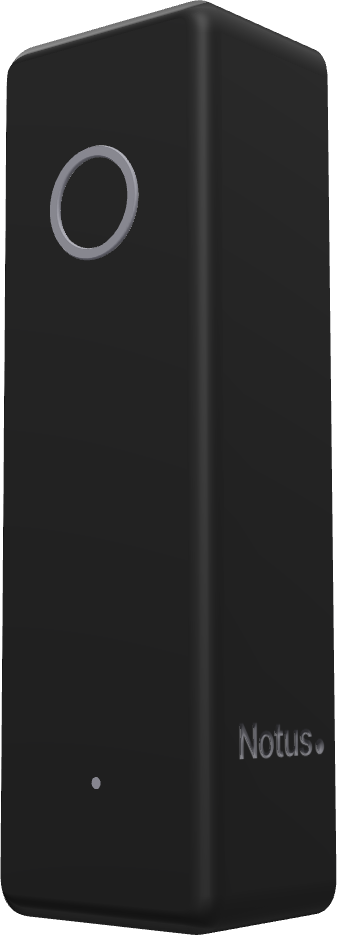
Notus is available for pre-order, shipping in the first half of 2027. See how it works
Telling participants
The banner Teams, Meet and Zoom display when recording starts is not enough on its own. Recording a meeting means processing personal data (voice, name, what people say), and under the GDPR the people concerned have to be informed; the CNIL's guidance (in French) sets out what that covers. France Num turns it into practical steps: say before you start that the meeting is recorded, why, how long the data is kept and how to object; put it in the invitation when you can; and be ready to take notes by hand if someone says no.
One sentence at the start does it: "I'm recording so I can write the minutes; the audio will be deleted once they're approved." France Num suggests deleting the audio and the raw transcript on approval, or within thirty days at the latest. In person there is no banner, so that sentence is the only notice people get. The French legal framework is in Recording a work meeting in France: what the law says.
Proofread before you send
Allow a quarter of an hour of checking per hour of meeting. Start with the decisions: was each one agreed, and by whom? The quote that rule 3 of the prompt asks for is there for this. Then search the transcript for "not", "no" and "never" around each decision, and compare every figure with the estimate, the schedule or the previous minutes.
Then move on to the actions. AI likes to write "the team will look into it": replace that with a name and a date, or move the line to open points. Fix misheard proper names in one go with Find and replace. Finally, take out anything said "between us": it is in the transcript, and the minutes have no reason to repeat it. Send within 24 hours, as France Num recommends, and delete the recording.
Frequently asked questions
Can an attendee start the Teams transcript?
Yes, if they are a presenter and the organizer has not limited it to organizers in the meeting options. A guest or someone from another organization cannot: ask someone in the host organization to start it and share the file afterwards.
Does Google Meet's "Take notes for me" work on a free Gmail account?
No. It needs an eligible Google Workspace plan or a paid Google AI plan. On a free account, record the audio another way and run the transcript through an assistant (see How to transcribe audio to text).
Do I need a bot like Otter or Fireflies?
Only if you switch platforms often and the built-in tools fall short. Before connecting a bot to your calendar, turn off auto-join and check where the audio is hosted and whether it is used to train models. For meetings around a table, which no bot can hear, an AI voice recorder like Notus does that job.